
Document accessibility
Accessible Excel workbooks, and tagged PDFs made from them
An accessible Excel workbook is one a screen-reader user can move through and understand: named sheets with a title at the top, data in Excel Tables with real header rows, no merged cells or blank spacer rows, readable contrast, meaning that does not depend on colour, and described charts. I remediate existing .xlsx files to WCAG 2.2 Level AA, EN 301 549 clause 10 and the rules behind Microsoft’s Excel Accessibility Checker, and produce a tagged PDF where you need one. Every file comes back with a checker report and a plain list of what the checks cannot see.
In short
What I do
- Remediate Excel workbooks (.xlsx): sheet names and titles, Excel Tables with header rows, merged cells, blank rows and columns, contrast, colour-only meaning, alt text, link text, title and language.
- Produce a tagged PDF with real table structure, check it against the PDF/UA-1 profile and tell you what still fails.
- Deliver each file with before-and-after checker reports and a findings report.
- This is the companion to accessible Word and PowerPoint, which does not cover workbooks.
Not part of this service
- Changing your figures or formulas. I change structure, not data. Sheet names, link texts and alt texts are proposed to you for approval.
- Rebuilding a dashboard. If a layout cannot be made readable without a redesign, I say so; you decide.
- Macros, VBA and form controls. Not programmed or rewritten here.
- Testing with disabled users. My findings come from the file, the standards and the checkers.
- Legal advice. Whether a law applies to you is for your lawyer or compliance officer.
Is this page for you?
This page is for you if one of these describes your situation:
- You work for a public body, statistics office or university, and budgets, statistics or open data are published as .xlsx files.
- Your company publishes data tables: price lists, product data, annual-report tables, investor figures.
- You send price lists or order forms in Excel to EU customers, and a buyer has asked whether the file is accessible.
- A tender asks for EN 301 549 or WCAG AA for spreadsheets, or your PDFs made from Excel keep failing checks.
Check one of your workbooks in one minute
- Sheet tabs: “Sheet1” tells a screen-reader user nothing. Right-click a tab: if Unhide is available, there are hidden sheets.
- Tables: click inside your data. If no Table Design tab appears, it is not an Excel Table, and Excel has no header row to announce.
- Merged cells: click a title. If Home → Merge & Center is highlighted, the cells are merged.
- Properties: under File → Info, an empty Title is what a PDF of the workbook will show as its name.
Then run Review → Check Accessibility; the worked example below shows what a check like that cannot see.
Read on for the technical detail. Below: what makes a workbook accessible, a measured before-and-after example on a fictional budget workbook with every file downloadable, what happened to the tagged PDF, and the rules in the EU and the US. To skip ahead, send one workbook and I will tell you what is wrong with it.
What makes an accessible Excel workbook
An accessible Excel workbook tells a screen reader where the data is and what each value belongs to. The user moves cell by cell and hears one value at a time, so anything carried only by layout or colour is lost.
Sheets, titles and properties
Each sheet needs a name that says what is on it, and a title in A1, so the listener knows what the sheet holds before the first number. Hidden sheets may never be found. The workbook title and language (WCAG 2.2 success criteria 2.4.2 and 3.1.1) are set in the file properties.
Excel Tables, merged cells and blank rows
Data formatted as an Excel Table with a header row tells Excel and the screen reader which row holds the column names; a grid that only looks like a table does not. Merged cells break cell-by-cell navigation; Center Across Selection gives the same look without a merge. Blank spacer rows and side-by-side data blocks are read as empty cells and hide where the data ends.
Colour, contrast, charts and links
Red fill on over-budget figures means nothing to someone who cannot see it, so the meaning needs a text column as well (success criterion 1.4.1). Cell text has to reach 4.5:1 contrast, or 3:1 for large text (1.4.3). A chart needs alt text that gives the key figures, and series that can be told apart without colour. Link text such as “click here” does not say where it leads (2.4.4). Microsoft lists the checks its own tool runs in Rules for the Accessibility Checker.
Evidence: a fictional budget workbook, before and after
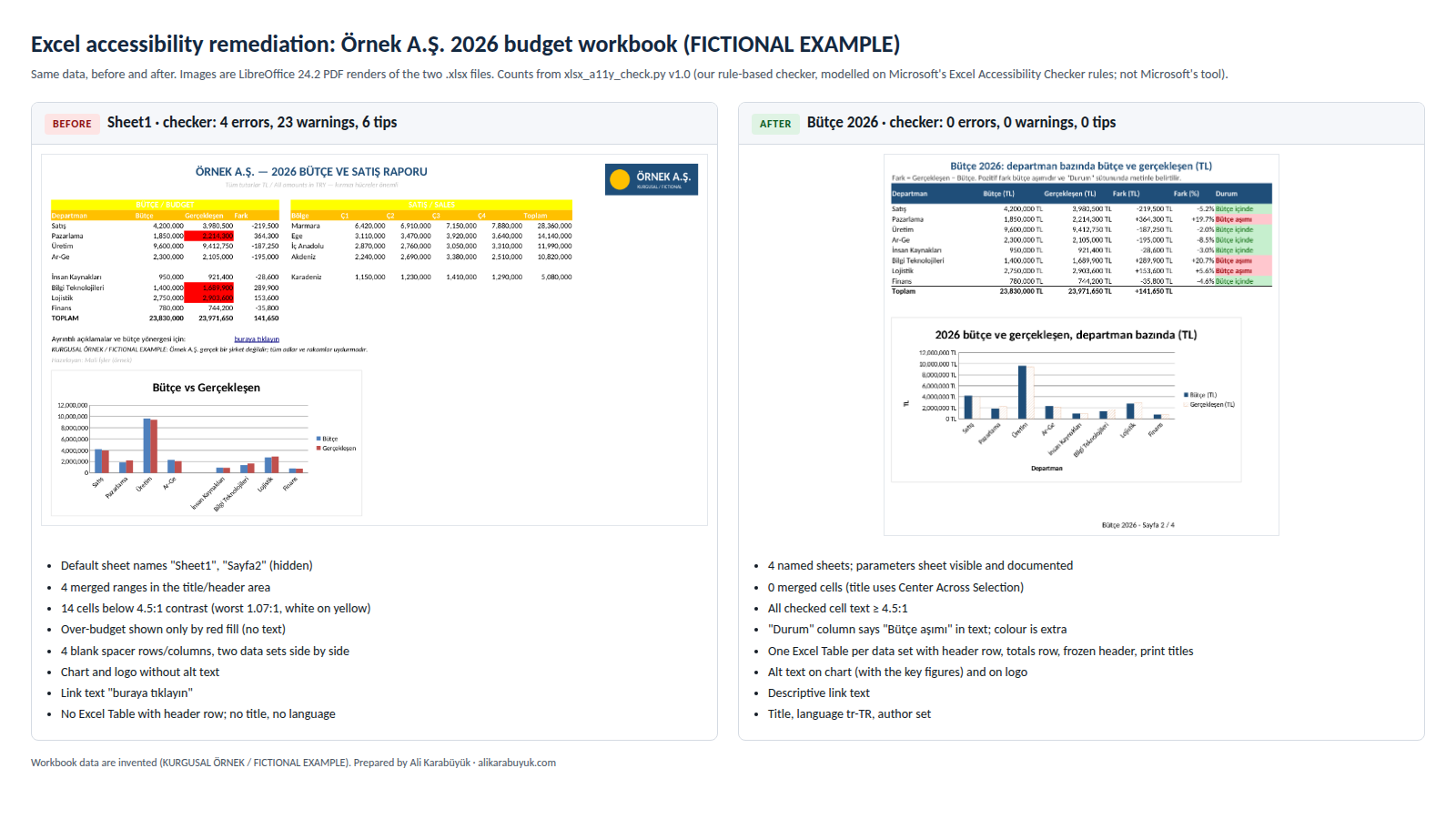
This is a measured worked example on a fictional workbook, not client work. I built a budget and sales report with problems that are common in real business workbooks, remediated it, checked both versions and produced tagged PDFs by two routes. All files can be downloaded below.
Source and licence
- Workbook: “Örnek A.Ş. — 2026 bütçe ve satış raporu”, a Turkish budget and sales report. Örnek A.Ş. is not a real company; every name and figure is invented.
- How it was made: a script (openpyxl 3.1.5) builds the “before” file with the problems, then the “after” file from the same data. Both are labelled FICTIONAL inside: in a cell, in the document properties and on the logo.
- Licence: my own work, no third-party content. The example link points to
example.com, reserved for examples (RFC 2606).
The checker is my own rule-based script, modelled on the rules Microsoft publishes for the Excel Accessibility Checker, plus five rules of my own (X01, X02, X11, X14, X15). It is not Microsoft’s tool: the severities are mine, and its counts will not match Excel’s exactly. Excel was not available, so Excel’s own checker was not run.
What was wrong, measured
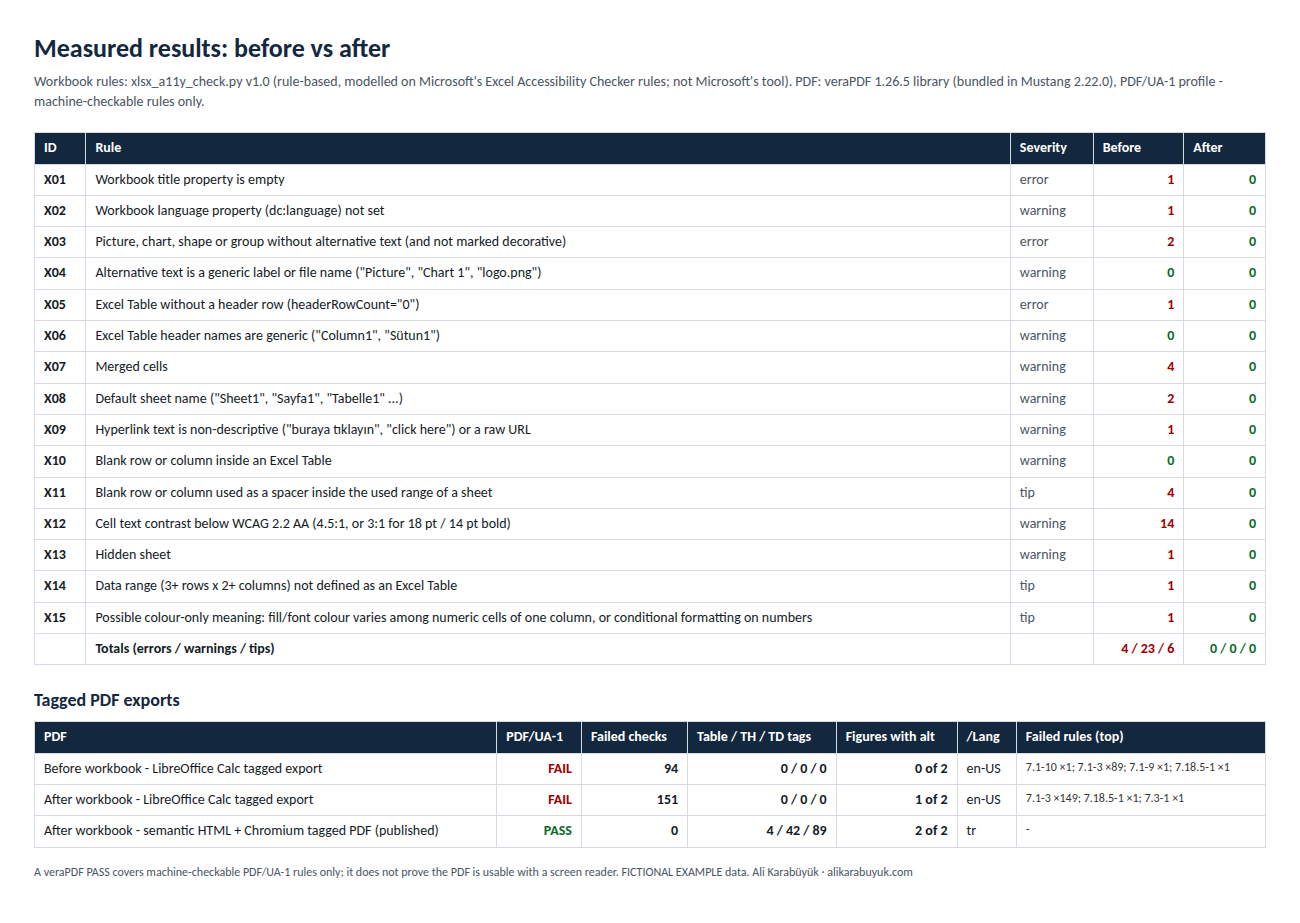
| Rule | Severity | Before | After |
|---|---|---|---|
| X01 Workbook title empty (my rule) | error | 1 | 0 |
| X02 Workbook language not set (my rule) | warning | 1 | 0 |
| X03 Chart and logo without alt text | error | 2 | 0 |
| X05 Excel Table without a header row | error | 1 | 0 |
| X07 Merged ranges | warning | 4 | 0 |
| X08 Default sheet names (“Sheet1”, “Sayfa2”) | warning | 2 | 0 |
| X09 Unclear link text (“buraya tıklayın”, Turkish for “click here”) | warning | 1 | 0 |
| X11 Blank spacer rows and columns (my rule) | tip | 4 | 0 |
| X12 Cells below the contrast minimum | warning | 14 | 0 |
| X13 Hidden sheet | warning | 1 | 0 |
| X14 Data range not an Excel Table (my rule) | tip | 1 | 0 |
| X15 Possible colour-only meaning (my rule, heuristic) | tip | 1 | 0 |
| Errors / warnings / tips | – | 4 / 23 / 6 | 0 / 0 / 0 |
Three further rules found nothing. Contrast was tested on 96 cells before and 139 after. The 14 failures were white on yellow block headers (1.07:1, 2 cells), white on amber column headers (1.64:1, 10 cells) and light grey notes on white (1.84:1, 2 cells), against 4.5:1 required. The red over-budget cells pass on contrast; their problem, colour as the only signal, is found only by the X15 heuristic.
What I changed
- Sheets and tables: four named sheets (Rapor bilgisi, Bütçe 2026, Satış 2026, Parametreler); the hidden sheet became a visible, documented one. Each data set is one Excel Table with a header row, without blank rows or side-by-side blocks.
- Titles: title in A1 and description in A2 on every sheet, header row frozen. The budget title uses Center Across Selection; the workbook has 0 merged cells.
- Colour and contrast: a new Durum (status) column says “over budget” or “within budget” in Turkish text; colour is only an extra cue, and the second chart series is hatched. Headers are white on dark blue; every checked cell reaches at least 4.5:1.
- Alt text and properties: the chart’s alt text gives the key figures: 3 departments over budget, Marketing +364,300 TL (19.7%), IT +289,900 TL (20.7%), Logistics +153,600 TL (5.6%), and the totals. Logo, link text, title and language (tr-TR) were fixed too.
What the tagged PDFs show
A PDF made from a spreadsheet is only accessible if its tags say “table”, “header cell” and “data cell”. The usual free route, LibreOffice Calc’s tagged export, does not produce them, and remediating the workbook does not change that. I checked every PDF with the veraPDF 1.26.5 library and its PDF/UA-1 profile.
| Measured | LibreOffice export, before | LibreOffice export, after | Published PDF, after |
|---|---|---|---|
| veraPDF PDF/UA-1 | 94 failed checks | 151 failed checks | compliant, 0 failed |
| Table / TH / TD tags | 0 / 0 / 0 (19 P tags) | 0 / 0 / 0 (33 P tags) | 4 / 42 / 89 |
| Figures with alt text | 0 of 2 | 1 of 2 | 2 of 2 |
| Declared language | en-US | en-US | tr |
The LibreOffice limitation. Calc’s tagged export turns every cell into a paragraph tag, so a screen reader gets no row or column headers. It also drops the chart’s alt text, writes en-US from the LibreOffice locale instead of the workbook’s tr-TR, and leaves gridlines and cell fills untagged (89 and 149 untagged-content failures). The “after” export fails more checks than the “before” one; it also prints on 4 pages instead of 1. These PDFs are included only for comparison.
The published PDF is built from the remediated workbook as structured HTML: headings, one table per Excel Table with scoped header cells (17 column, 25 row), and the chart with its alt text. Chromium prints it as a tagged PDF; a post-processing step marks five background paint runs as decoration and adds the link text, title, language and PDF/UA identifier. It is a rendition of the workbook, not Excel’s own “Save as PDF”, which was not available here.
One finding about editing the file later
I opened the remediated workbook in LibreOffice 24.2 and saved it as .xlsx again. The chart lost its alt text and Center Across Selection turned back into a merge (A1:F1): the checker went from 0 / 0 / 0 to 1 error and 1 warning. Re-check a workbook after anyone edits it in another spreadsheet program.
What the checks do not report
Whether alt text is right
The checker sees only whether alt text exists and whether it is a generic label or file name. I checked the chart’s figures against the data by hand.
Colours it does not compute
Table styles, chart colours, conditional-formatting results, sparklines and sheet backgrounds are not measured. Unfilled cells are assumed to be on white.
Whether the content makes sense
Reading order on a dashboard, sheet order, abbreviations such as Ç1 for Q1, units, and how a screen reader announces “+%19,7” need a person.
The rest of Excel
Form controls, macros, comments, data-validation prompts, pivot tables and external links are outside the checker.
veraPDF covers only machine-checkable PDF/UA-1 rules. I did not test this example with a screen reader or with users with disabilities; a 0 / 0 / 0 result does not mean that no problems remain.
Download the files and compare
| File | What it is | Size |
|---|---|---|
| Worked example (ZIP) | All files below, plus what is only in the ZIP: HTML checker reports, scripts, raw JSON reports (including the LibreOffice round trip) and findings.json | 834 KB |
| Workbook, before | The problem workbook | 17 KB |
| Workbook, after | The remediated workbook | 23 KB |
| Tagged PDF, published | veraPDF PDF/UA-1: compliant, 0 failed checks | 191 KB |
| LibreOffice export, after | For comparison: 151 failed checks, no table tags | 53 KB |
| Checker report, before | 4 errors, 23 warnings, 6 tips | 135 KB |
| Checker report, after | 0 errors, 0 warnings, 0 tips | 109 KB |
The workbook content is in Turkish; the reports are in English.
What you receive
You receive the remediated workbooks, tagged PDFs if you publish PDFs, and reports that say what changed and what did not.
- The remediated .xlsx with figures and formulas unchanged, and a list of renamed sheets and new Table names, so anything that refers to them can be checked.
- Before-and-after checker reports and a findings report, including what was left alone on purpose and what the checks cannot see.
- A tagged PDF of each workbook if you need one, with its PDF/UA-1 result and the reason for any remaining failure.
- On request, a short note for whoever maintains the file: what to keep, and which programs to avoid saving it with.
How the work runs
You send one real workbook first; the price is fixed before any work starts.
- Send one workbook. The one that worries you most. I tell you what is actually wrong, including the parts not worth paying to fix.
- You receive a scope and a fixed price for that file or the whole set.
- I do the work. You receive a preview copy, marked as such, with the checker reports and the proposed sheet names, link texts, alt texts and colour changes for your approval.
- Your approval releases the final files, the tagged PDFs and the findings report.
Pricing
I price each job after seeing the material. Row count says little about effort: a 5,000-row export with one header row can take less time than a one-page dashboard with merged titles, side-by-side blocks and five charts. You get a fixed price for the set before work starts, with no hourly meter. When many workbooks come from one template or export, fixing the source first is usually cheaper, and I will say so.
Why this matters now
Accessibility rules treat spreadsheets as documents: EU public bodies must publish them accessibly, and the same standard is used in procurement and under the European Accessibility Act.
Legal note: this page covers the technical side. Whether a law applies to you, and to which files, is for your legal adviser or compliance officer to confirm.
- The standard: EN 301 549 V3.2.1, cited by Implementing Decision (EU) 2021/1339. Clause 10, “Non-web documents”, applies the WCAG 2.1 success criteria to files such as spreadsheets; I work to WCAG 2.2 AA and report against both when asked.
- EU public sector: the Web Accessibility Directive (EU) 2016/2102 covers public bodies’ websites and apps. Per the EUR-Lex summary, only office files published before 23 September 2018 are excluded, unless needed for administrative processes.
- EU private sector: the European Accessibility Act, Directive (EU) 2019/882, applies from 28 June 2025 to the products and services it lists. For website and app content, Article 2(4)(b) excludes “office file formats published before 28 June 2025”. Whether a price list sent to a business customer is covered is for your lawyer; in practice the request often comes from the buyer’s own procurement rules.
- United States: the ADA Title II rule covers state and local government web content, including spreadsheet files. After the April 2026 extension, the deadlines are 26 April 2027 (50,000 people or more) and 26 April 2028 (smaller entities), at WCAG 2.1 AA.
For Word and PowerPoint, see accessible Word and PowerPoint; for PDFs without a usable source file, see multilingual PDF accessibility.
Frequently asked questions
Doesn’t Excel’s Accessibility Checker already do this?
It finds a good share of the problems and is worth running. It cannot judge whether a chart’s alt text gives the right figures or whether a sheet makes sense read cell by cell, and it does not follow the workbook into a PDF. The worked example shows each of these gaps.
Can I just export the workbook to PDF?
You can, but check the result. In the worked example, LibreOffice Calc’s tagged export produced no table tags, dropped the chart’s alt text and declared the wrong language, before and after remediation. The published PDF was built by a different route and passed the veraPDF PDF/UA-1 profile with 0 failed checks.
Will my figures, formulas or layout change?
Figures and formulas stay as they are. The structure changes: merged cells, spacer rows and side-by-side blocks go, and sheets and tables get names. You see every renamed sheet and colour change before the final files are released.
What happens when someone edits the file later?
Accessibility can be lost on save. When the remediated example was saved again through LibreOffice 24.2, the chart lost its alt text and a merge came back. Re-check a workbook after anyone edits it in another spreadsheet program; I can do that for you.
Do you test with a screen reader?
No, and I do not claim otherwise. My findings come from the file, the standards and the checkers. Testing by people who use assistive technology should be commissioned separately.
Related services
Send me one workbook
One file — the budget, price list, statistics table or report workbook that worries you most. You get back a straight account of what is wrong with it, including the parts that are not worth paying to fix.
Ali Karabüyük · Tekirdağ, Türkiye · working remotely with clients worldwide · document and image production since 2004, professional practice since 2008.