
Document accessibility
Accessible Word and PowerPoint documents, and tagged PDFs made from them
Accessible Word and PowerPoint documents are files that a screen-reader user can navigate and understand. It has real headings and slide titles, described images, tables with header rows, readable contrast, a declared language and a sensible reading order. I remediate existing .docx and .pptx files and their templates to WCAG 2.2 Level AA and EN 301 549 clause 10, and export them to tagged PDF. Every file comes back with a checker report and a plain list of what the checks cannot see.
In short
What I do
- Remediate Word documents (.docx) and PowerPoint presentations (.pptx): headings, slide titles, alt text, table headers, lists, links, language, reading order and contrast.
- Fix the Word template or PowerPoint master behind them, so that new documents start out accessible.
- Export tagged PDFs, check them against the PDF/UA-1 profile, and tell you what still fails.
- Deliver each file with before-and-after checker reports and a findings report.
Not part of this service
- Rewriting your text. I change structure, not sentences. Link texts and image descriptions are the exception, and you approve each one.
- Redesign. The layout stays. Where a brand colour fails contrast, I show you the measurement and a proposal; you decide.
- Excel workbooks and fillable forms. Different problems, not covered here.
- Testing with disabled users. My findings come from the file, the standards and the checkers.
- Legal advice. Whether a law applies to your organisation is for your lawyer or compliance officer.
Is this page for you?
This page is for you if one of these describes your situation:
- You work for a public body or university in the EU. Reports, guidance notes and lecture slides are published as Word, PowerPoint or PDF.
- Your company sells into the EU, and customer-facing documents (terms, manuals, onboarding decks) are part of your European Accessibility Act work.
- You are an agency producing reports and presentations for public-sector clients, and the tender asks for EN 301 549 or WCAG AA.
- Your PDFs keep failing accessibility checks, and the cause sits in the Word or PowerPoint file they were exported from.
Check one of your files in one minute
- Word: open View → Navigation Pane. If the headings list is empty, the document has no real headings, however bold its titles look.
- PowerPoint: open View → Outline View. A slide with no title text there cannot be found by name with a screen reader.
- Both: open File → Info. An empty Title, or “PowerPoint Presentation”, is what the exported PDF will show as its name.
Then run Review → Check Accessibility; the worked example below shows what it cannot see.
Read on for the technical detail. Below: what makes an Office file accessible, a measured before-and-after example on two real U.S. government documents with every file downloadable, and the rules in the EU and the US. To skip ahead, send one file and I will tell you what is wrong with it.
What makes a Word or PowerPoint file accessible
An accessible Office file carries its meaning in its structure, not only in its look: a screen reader knows a line is a heading only if it uses a heading style.
Headings and slide titles
In Word, navigation depends on Heading styles; bold Normal text does not count. In PowerPoint, each slide needs text in a title placeholder; a text box at the top does not count. Screen-reader users move heading by heading and slide title by slide title. Without them, they listen from the start.
Alt text and decorative objects
Informative pictures, charts and diagrams need alt text that carries the same information — for a chart, its values. Icons and background shapes are marked as decorative so that they are skipped. A file name such as “Panel [email protected]” is not a description.
Tables, lists, links and blank lines
Tables need a marked header row, or a screen reader cannot say which column a value belongs to. Lists need list formatting, not typed bullets. Link text should say where it leads (“GAO report GAO-12-681”), not repeat a long URL. Empty paragraphs used for spacing are read out as “blank, blank, blank”.
Reading order, language and contrast
PowerPoint reads a slide’s objects in stacking order, usually the order they were added, and the exported PDF inherits it. The document language sets the pronunciation rules. Text contrast has to reach 4.5:1, or 3:1 for large text (WCAG 2.2, success criterion 1.4.3). Microsoft lists the checks its own tool runs in Rules for the Accessibility Checker.
Evidence: a Word handbook and a PowerPoint deck, before and after
This is a measured worked example on two real, public-domain U.S. government files, not client work. I checked both, remediated them, checked them again, exported them to tagged PDF and compared every page. All files and reports can be downloaded below.
Source and license
- Word: TechFAR Handbook for Procuring Digital Services Using Agile Processes (discussion draft, 2014, 41 pages), from the U.S. Digital Service repository usds/playbook, commit
f5d71f19. - PowerPoint: E-Filing Study, made by 18F for the Federal Election Commission (February 2017, 81 slides), from 18F/fec-efiling, commit
1bbb1c1f.
Both repositories declare the work public domain in the United States, with a worldwide CC0 1.0 waiver. The “before” files are byte-identical to the published ones (checked against their git hashes).
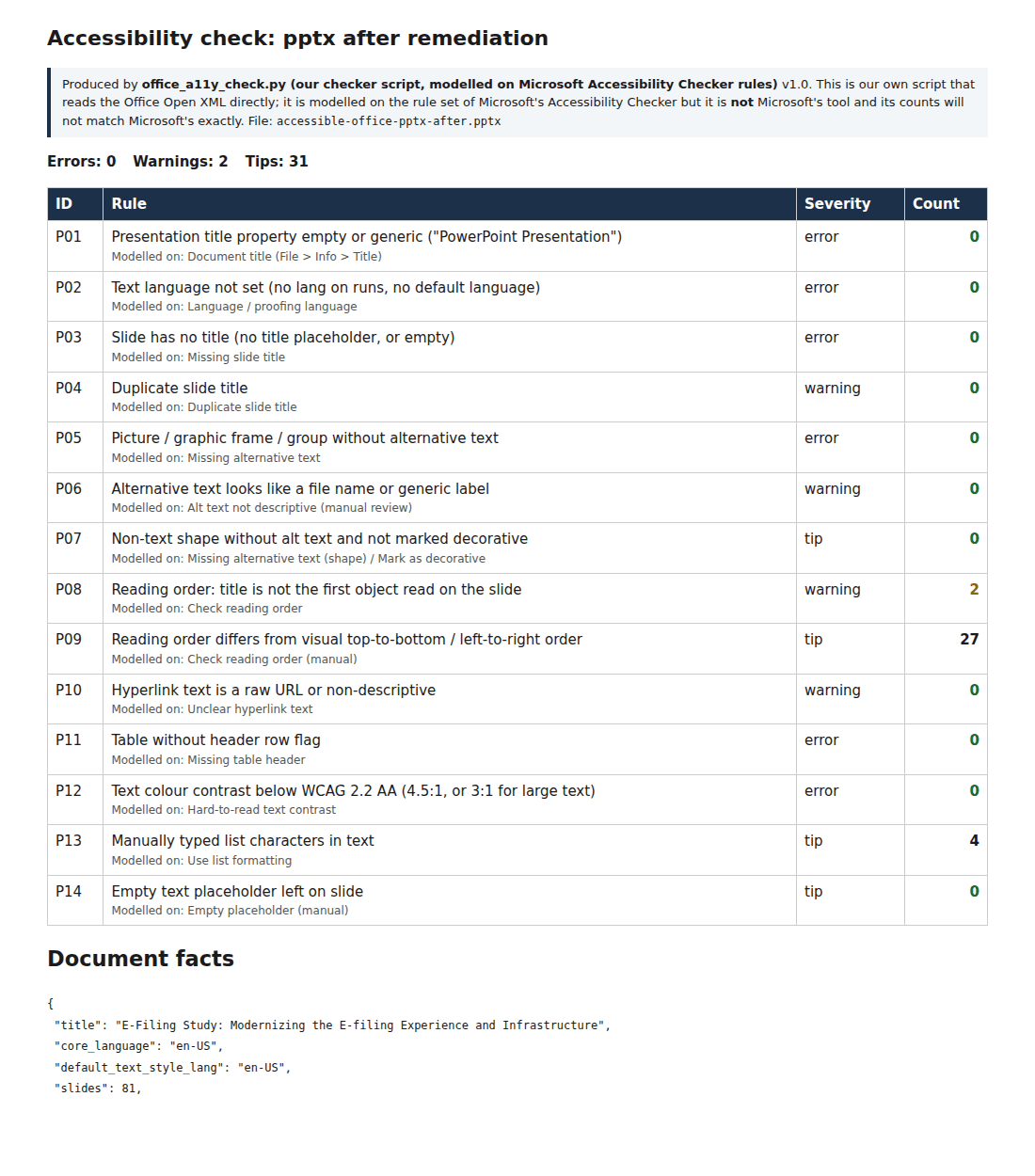
The checker is my own script, modelled on the rules of Microsoft’s Accessibility Checker. It reads the Office file format directly; it is not Microsoft’s tool, and its counts will not match Microsoft’s exactly.
What was wrong, measured
| Measured | Before | After |
|---|---|---|
| Title property | empty | set |
| Paragraphs in a heading style | 0 (24 bold lines posing as headings) | 22 (H1 2, H2 12, H3 8) plus 2 subtitles |
| Images, diagrams, text boxes without alt text | 8 | 0 |
| Tables without a marked header row | 27 of 27 | 0 |
| Link texts that are raw URLs | 11 | 0 |
| Runs of empty paragraphs used for spacing | 32 runs | 0 (177 empty paragraphs removed) |
| Typed bullets instead of a list | 3 | 0 |
| Tables with merged cells | 22 | 22, left as they are |
| Errors / warnings / tips | 37 / 93 / 2 | 0 / 23 / 1 |
| Measured | Before | After |
|---|---|---|
| Title property | “PowerPoint Presentation” | the real title |
| Text runs with a language | 0 of 182 | all (en-US) |
| Slides without a title | 55 of 81 | 0 |
| Duplicate slide titles | 2 | 0 |
| Pictures without alt text | 54 | 0 |
| Alt text that is a file name | 26 | 0 |
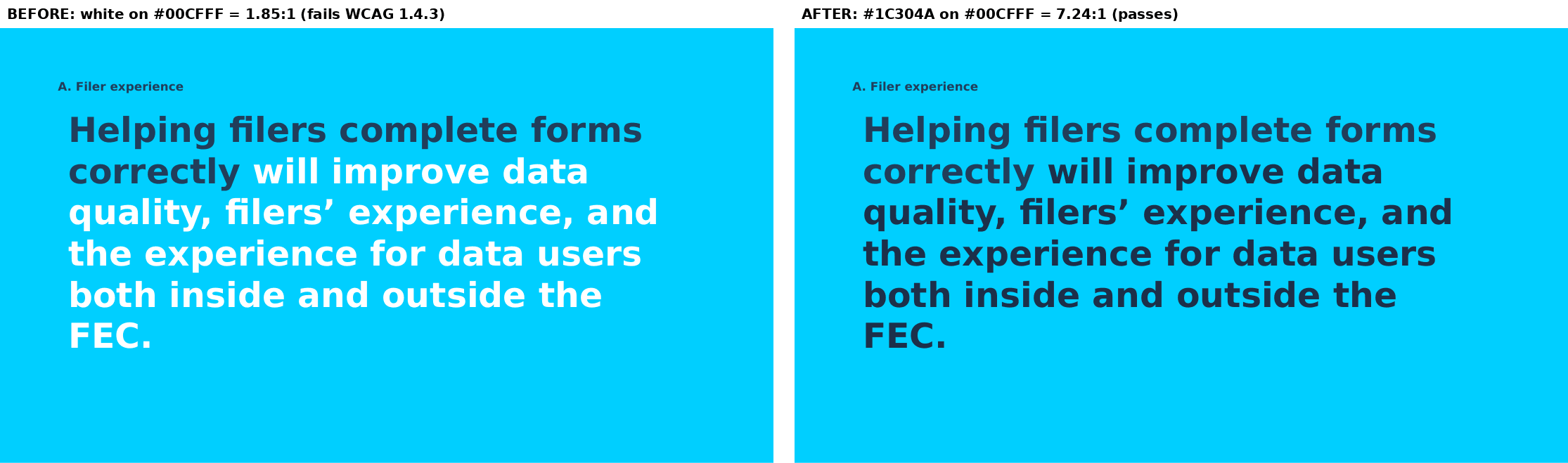
| Text runs below the contrast minimum | 15 (1.82–1.85:1) | 0 (5.06–7.24:1) |
| Title not read first | 3 slides | 2, left for a design decision |
| Errors / warnings / tips | 126 / 31 / 54 | 0 / 2 / 31 |
What I changed, and one decision that would be yours
In the handbook, the visual headings were given heading styles with their look kept, and the tables got repeating header rows. The diagrams got alt text, and the empty spacing paragraphs became paragraph spacing. In the deck, 22 visible headings became real slide titles. 33 other slides, mostly pictures and charts, got a title only a screen reader announces. 47 pictures got alt text written from the image and the speaker notes, and 48 decorative shapes were marked as such.
The decision: 15 text runs on 12 slides were white on bright cyan or cyan on white, at 1.82–1.85:1. I changed them to the deck’s own navy (7.24:1) or a darker blue (5.06–5.14:1). On three slides this removes a white/navy emphasis. In a client job, you see this before anything changes.
What the tagged PDFs show
Both finished files were exported to tagged PDF with LibreOffice 24.2 and checked with the veraPDF 1.26.5 PDF/UA-1 profile. Untagged page content such as slide backgrounds was then marked as decoration, which changed 0.0 % of the pixels. The deck passes; the Word file does not.
| Measured | Word before | Word after | PowerPoint before | PowerPoint after |
|---|---|---|---|---|
| Heading tags | 0 | 22 | 26 | 81 |
| Table header cells | 0 | 56 | – | – |
| Figures with alt text | 0 of 10 | 8 of 10 | 27 of 89 | 47 of 47 |
| veraPDF PDF/UA-1 | 356 failed checks | 46 failed checks | 167 failed checks | compliant, 0 failed |
Why the Word PDF still fails: all 46 failures come from two SmartArt diagrams. LibreOffice leaves their text untagged (44 checks) and adds two empty figure tags (2 checks). The fix is to convert the diagrams to pictures with alt text, or to finish the file in Acrobat Pro. I would rather tell you that than show a green result I do not have.
What the checks do not report
A language nobody set
The deck had no language at all, yet its exported PDF declared en-US: LibreOffice filled in its own setting. A PDF check sees a language and is satisfied.
File names as descriptions
26 pictures had alt text such as “Panel [email protected]” or “Chart”. A check that only asks whether alt text exists counts them as described.
A story in the wrong order
On three comic-strip slides, the progress map was read before its panel. No checker knows the order of a story; the reports list it and a person decides.
Tables made of tab stops
Two pages of the handbook set out price lines with tab characters. They look like a table, are not one, and no tool flags them. Left as they are, and listed in the findings.
None of these tools judges whether alt text is accurate or measures contrast of text over pictures (5 runs in the deck). None of them tests with a real screen reader. I did not test this example with a screen reader or in Microsoft Office itself.
Did the layout change?
I rendered every page before and after at 100 dpi and compared them pixel by pixel.
- Deck: 64 of 81 slides are identical (mean difference 0.497 %). Every slide above 1 % is a contrast change or a title given “(1/2)” or “(2/2)” to tell two identical titles apart.
- Handbook: 22 of 41 pages are identical (mean 3.389 %, highest 28.727 % on page 14). The difference is text moving by about a line after the empty paragraphs were removed, and table header rows repeating on the next page.
Download the files and compare
| File | What it is | Size |
|---|---|---|
| Worked example (ZIP) | Word before and after, both tagged PDFs, four checker reports, images (PowerPoint files below) | 3.7 MB |
| Word, before | Handbook as published | 681 KB |
| Word, after | Remediated handbook | 592 KB |
| PowerPoint, before | Deck as published | 7.3 MB |
| PowerPoint, after | Remediated deck | 7.3 MB |
| Word, tagged PDF | Not PDF/UA-1 compliant (SmartArt, see above) | 743 KB |
| PowerPoint, tagged PDF | PDF/UA-1 profile: 0 failed checks | 2.1 MB |
| Checker report, Word before | 37 errors, 93 warnings, 2 tips | 109 KB |
| Checker report, Word after | 0 errors, 23 warnings, 1 tip | 101 KB |
| Checker report, PowerPoint before | 126 errors, 31 warnings, 54 tips, reading order per slide | 99 KB |
| Checker report, PowerPoint after | 0 errors, 2 warnings, 31 tips | 91 KB |
What you receive
You receive the remediated Office files, tagged PDFs if you need them, and reports that say what changed and what did not.
- The remediated .docx or .pptx, wording unchanged apart from link texts and descriptions you approved.
- Before-and-after checker reports and a findings report, including what was left alone on purpose and what the checks cannot see.
- A tagged PDF of each file if you publish PDFs, with its PDF/UA-1 result and the reason for any remaining failure.
- On request, the corrected Word template or PowerPoint master.
How the work runs
You send one real file first; the price is fixed before any work starts.
- Send one document. The report or deck that worries you most. I tell you what is actually wrong, including the parts not worth paying to fix.
- You receive a scope and a fixed price for that file or the whole set.
- I do the work. You receive a preview copy, marked as such, with the checker reports and a list of any colour or wording changes for your approval.
- Your approval releases the final files, the tagged PDFs and the findings report.
Pricing
I price each job after seeing the material. Page count alone does not decide the effort: an 80-slide deck on a clean master can take less time than a 20-page report full of merged tables and SmartArt. You get a fixed price for the set before work starts, with no hourly meter. When many documents share one template, fixing the template first is usually cheaper, and I will say so.
Why this matters now
EU public bodies must publish accessible office documents, and companies serving EU consumers increasingly must too. What that means for your organisation is a legal question; this page covers the technical side.
- EU public sector: the Web Accessibility Directive (EU) 2016/2102 covers public bodies’ websites and apps. Per the EUR-Lex summary, only office files published before 23 September 2018 are excluded, unless needed for administrative processes.
- The standard: EN 301 549 V3.2.1, cited by Implementing Decision (EU) 2021/1339. Clause 10, “Non-web documents”, applies the WCAG 2.1 success criteria to files like Word and PowerPoint. I work to WCAG 2.2 AA and report against both when a tender asks.
- EU private sector: the European Accessibility Act, Directive (EU) 2019/882, applies from 28 June 2025 to the products and services it lists. For website and app content, Article 2(4)(b) excludes “office file formats published before 28 June 2025”.
- United States: the ADA Title II rule covers state and local government web content, including word-processing, presentation, PDF and spreadsheet files. After the April 2026 extension, the deadlines are 26 April 2027 (50,000 people or more) and 26 April 2028 (smaller entities), at WCAG 2.1 AA. The ADA.gov fact sheet explains the exception for preexisting documents.
For PDFs without a usable Word or PowerPoint source, see multilingual PDF accessibility.
Frequently asked questions
Doesn’t Microsoft’s Accessibility Checker already do this?
It finds a good share of the problems and is worth running. It cannot judge whether alt text is right or whether a reading order makes sense, and it does not follow the file into the exported PDF. The worked example shows each of these gaps.
Will the document look different afterwards?
The layout stays, and I measure it. In the worked example, 64 of 81 slides and 22 of 41 Word pages were pixel-identical; every remaining difference is explained in the report.
Can you fix our template so new documents start accessible?
Yes, and for many similar documents it is often the better investment. In Word, that means heading, list and table styles; in PowerPoint, layouts with real title placeholders and theme colours that pass contrast.
Will the exported PDF be PDF/UA compliant?
It depends on the content, and I tell you per file. In the example, the deck’s PDF passed the veraPDF PDF/UA-1 profile and the handbook’s did not, because of two SmartArt diagrams. Machine checks cover only part of PDF/UA; the rest needs human review.
Will you change our brand colours?
Not without your agreement. I measure every text colour against its background, show you what fails and by how much, and propose the smallest change that passes.
Do you test with a screen reader?
No, and I do not claim otherwise. My findings come from the file, the standards and the checkers. Testing by people who use assistive technology should be commissioned separately.
Related services
Send me one document
One file — the report, deck or template that worries you most. You get back a straight account of what is wrong with it, including the parts that are not worth paying to fix.
Ali Karabüyük · Tekirdağ, Türkiye · working remotely with clients worldwide · document and image production since 2004, professional practice since 2008.