
Debt Payoff Planner (Excel & Google Sheets)
This debt payoff planner runs the snowball and the avalanche side by side across 120 months on your own balances, and prices the difference between them in money and in months.
Pay the smallest balance first, or the highest interest rate first? Every article online answers this confidently and none of them know your debts. The honest answer is a number, and a number needs a calculation.
What is in it
- Seven tabs: Start Here, Your Debts, The Plan, Snowball Schedule, Avalanche Schedule, Bill Calendar and Payment Log.
- Your Debts — up to 8 debts entered with their real balances, rates and minimum payments rather than a worked-up average.
- Two inputs from you and nothing else: the extra you can put in every month, and the month you start.
- Snowball Schedule and Avalanche Schedule — the full 120 months each, calculated month by month so you can read either route line by line.
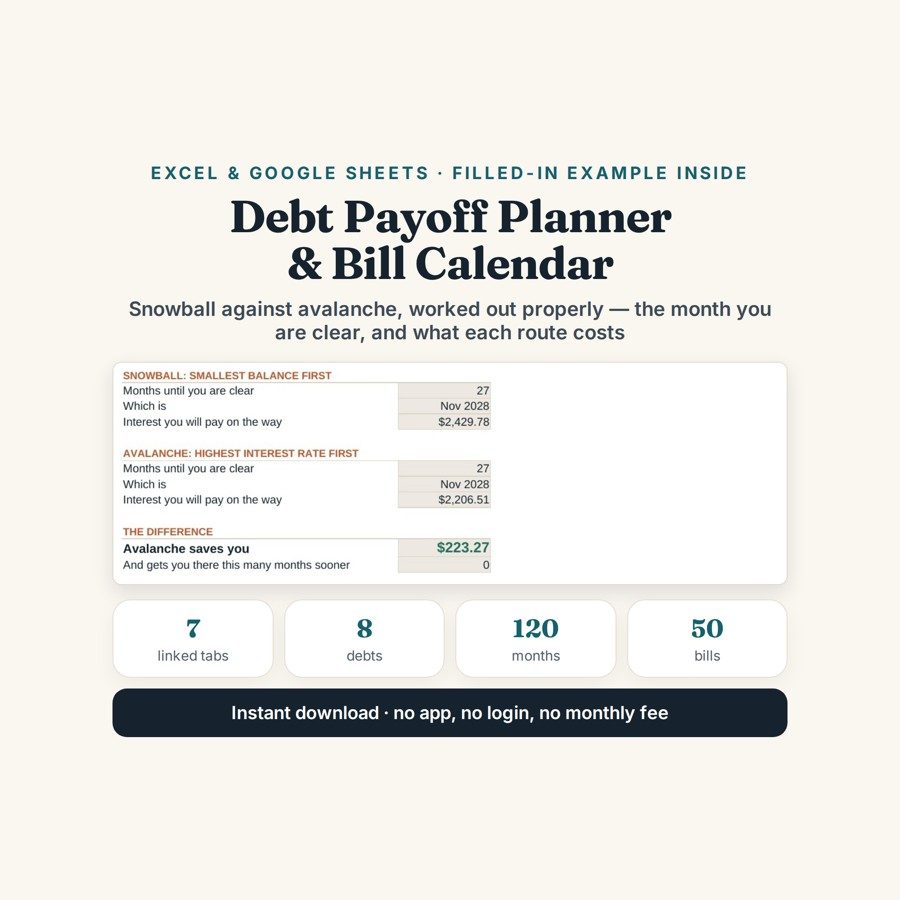
- The Plan — months until clear, the month it happens, and the interest each route costs, for both methods at once.
- Bill Calendar — 50 bills with the day each one goes and a running total by day; Payment Log takes 240 logged payments.
Who it is for
Anyone with more than two debts and an opinion to settle — a couple of cards, a car loan, an overdraft, maybe a family loan — who wants the decision made by their own numbers rather than by whichever article they read last. It is also for anyone paying down debt who still needs to see which bills fall on which day while they do it.
The worked example
The file arrives with a set of debts already entered and both routes calculated across the full 120 months. The Plan reduces them to three comparable lines: months until clear, the month it happens, and the interest each route costs — the same three answers for the snowball and for the avalanche, next to each other.
In that worked example the avalanche wins by $223 and by no months at all. That is the whole internet argument, priced: a gap small enough that the snowball — which clears whole debts sooner and so keeps the plan alive past March — is the sensible choice. With your own balances and rates the gap may be far wider, and that is precisely why the file calculates it instead of recommending one.
How it works
Compatible with Microsoft Excel 2016 or newer on Windows or Mac, Google Sheets, and LibreOffice. No macros, no add-ons, no account to create, nothing to install.
The download has two workbooks: one with the example above already filled in, so you can see what every column expects, and the same file completely blank for your own figures. A plain-English guide comes as a PDF. Order on WhatsApp — $9
Orders are taken on WhatsApp: message me and I’ll send the payment details, then the files as soon as the payment is confirmed.
Questions people actually ask
Which is better, the snowball method or the avalanche method?
It depends entirely on your own balances and rates, which is what this file calculates — both routes run side by side across 120 months. In the worked example the avalanche saves $223 and no months at all, a gap small enough that the snowball is the better human choice. With higher rates or larger balances the gap widens, so the answer is whichever number your own file produces.
How many debts can I put in, and what kinds?
Up to 8 debts, each entered with its real balance, interest rate and minimum payment — cards, loans, overdrafts, car finance or a family loan all work the same way. You add only two things beyond that: the extra you can pay each month, and the month you start. The Bill Calendar takes a further 50 bills so nothing gets missed while you pay down.
What information do I need before I start?
Three numbers per debt, all of which are on a recent statement: the current balance, the interest rate and the minimum payment. Then decide the extra you can add each month and the month you begin. That is the entire input — the 120-month schedules build themselves from it.
Does it work in Google Sheets, or is Excel required?
Both work — the file is built as .xlsx and imports into Google Sheets through File, then Import, then Upload, choosing Replace spreadsheet, with the schedules recalculating correctly. Excel 2016 or newer runs it on Windows and Mac, and LibreOffice opens it too. No macros, so nothing needs enabling.
Is this debt advice, and does it connect to my accounts?
No on both counts — it is a calculator, not debt advice, and it connects to nothing; you type your own balances in. It assumes you stop borrowing, uses monthly simple interest rather than daily compounding, and does not model promotional or introductory rates, so treat its totals as a comparison between two routes rather than an exact repayment quote.
Need it built around your business?
The file assumes borrowing stops, works in monthly simple interest rather than daily compounding, and does not model promotional rates. If your debts do not fit that — a 0% period about to end, a consolidation loan replacing three balances mid-plan, more than 8 debts, or repayments split across two people — I can rebuild the same side-by-side comparison around your actual agreements.
All other templates are listed on the Excel & Google Sheets Templates page.